
How to create your own Face accessories effect
All Face Accessories effects are created in a similar way.
First create a source picture with an image creation application like Adobe Photoshop.
When creating a new face accessory effect keep in mind that the resource picture must fit to the human face proportions so it can correctly overlap your face. You can download an example stencil picture from the ManyCam website to ensure that the picture you are creating is correctly proportioned.
Below is our example stencil picture for creating proportioned Eyes Accessories, Hats&Hair and Masks:
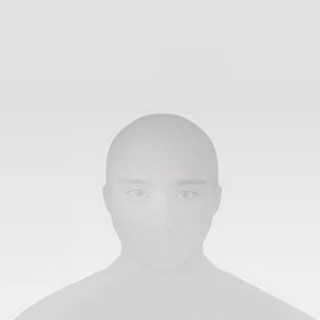
Download the Face Accessories stencil picture
A resource file for a Face Accessories effect must be a .bmp, .png, or .jpg image.
The recommended size for a face accessory resource file is 100x90 pixels.
A correctly proportioned Face Accessories effect overlapping the stencil picture should look like the images below:
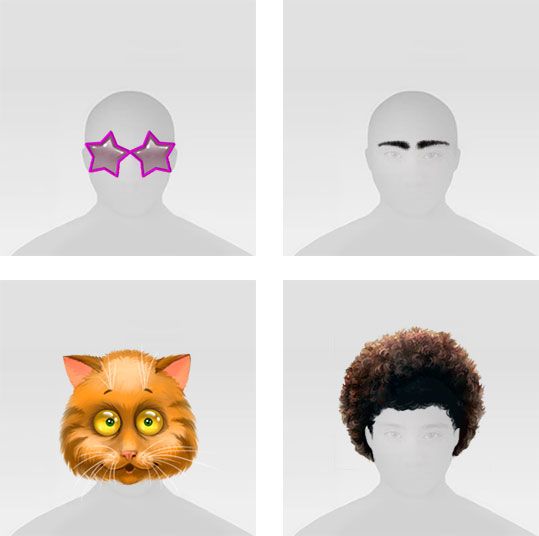
Here is an example of how to create your own Eyes Accessories effect using Adobe Photoshop software.